スクリプトオブジェクトを理解してみる

load script 命令はもしかすると難しいものなのかもしれません。なぜかというと、スクリプトオブジェクトの存在が理解を阻むからです。しかし、load script 命令はスクリプトオブジェクトを返します。「load script 命令におけるスクリプトの再利用」では触れませんでしたが、今回はその辺りのことを。

AppleScript ではオブジェクトが全てです。値という言葉を使うことはありますが、「値 = オブジェクト」とほぼ同意です。AppleScript はオブジェクト単位で考えると理解しやすいかもしれません。

もちろん、スクリプトファイルに保存されたスクリプトもオブジェクトです。

Script Editor で開く

set documents_folder to path to documents folder
tell application "Finder"
    activate
    set the_window to make new Finder window
    set target of the_window to documents_folder
end tell

このようなスクリプトでもオブジェクトです。AppleScript では Java や Objective-C、Python、PHP などの他のプログラム言語と異なり「クラス」を作りません。AppleScript でクラスを定義できるのは、操作対象となるアプリケーションや AppleScript だけです。AppleScript でユーザーが作ることができるのは、「オブジェクト」だけです。

ユーザーが定義したオブジェクトのことを「スクリプトオブジェクト(Script Object)」といいます。スクリプトオブジェクトはデータ(属性)とアクション(メソッド。AppleScript ではハンドラ)を持つことができます。

通常、スクリプトオブジェクトは予約語 script を用いて定義します。

script valiable_name
    [ property parent: reference_of_parent ]
    [ property property_label: initial_value ]...
    [ handler_definition ]...
    [ statement ]...
end script

script から end script の間までがスクリプトオブジェクトの定義になります。valiablename はスクリプトオブジェクトの名前になります。parent 属性で指定する referenceof_parent は、スクリプトオブジェクトの親の参照です。他のスクリプトオブジェクトから属性やハンドラを継承したいときに利用します。

propertylabel は 属性の識別子で、initialvalue に初期値を記述します。handlerdefinition はハンドラ(アクション)の定義で、statement は run ハンドラに含まれるものになります。valiablename 以外は全て任意で、あってもなくてもかまいません。

だから、一番シンプルなスクリプトオブジェクトは、valiable_name だけを指定したものになります。

script ScriptObject
end script

しかし、このままでは何の役にも立ちません。他の言語のように後から属性を追加してデータを加えるということはできません。通常は属性とハンドラを定義し、それなりの体裁を整えておきます。

Script Editor で開く

script FirstScriptObject -- スクリプトオブジェクトの名前
    -- スクリプトオブジェクトの属性。初期値は空のリスト
    property the_list : {}

    on add_data(x) -- スクリプトオブジェクトのハンドラ
        set end of the_list to x
    end add_data

    -- スクリプトオブジェクトの任意の文(暗黙の run ハンドラに含まれる)
    add_data(10)
    add_data(20)
    add_data(30)
    the_list
end script

run FirstScriptObject
--> {10, 20, 30}

AppleScript では、トップレベルのスクリプトオブジェクト(Top-Level Script Object)から処理が開始されます。どのスクリプトにもトップレベルのスクリプトオブジェクトというものが存在していますが、それはユーザーの目には触れません。

トップレベルのスクリプトオブジェクトは、ユーザーが定義するものではありません。AppleScript のスクリプトに既に存在しているものです。トップレベルのスクリプトオブジェクトは決して明示されませんが、全てのスクリプトはトップレベルのスクリプトオブジェクトに含まれたものになります。

set documents_folder to path to documents folder
tell application "Finder"
    activate
    set the_window to make new Finder window
    set target of the_window to documents_folder
end tell

このスクリプトならトップレベルのスクリプトオブジェクトに属する run ハンドラの中のにあるスクリプトになります。言い換えるなら、ユーザーは意識していなくてもスクリプトオブジェクトを作成しているのです。上記のスクリプトは分かりやすく書くと次のようになっています。

(* script *) -- トップレベルのスクリプトオブジェクト
    (* on run *) -- トップレベルのスクリプトオブジェクトの run ハンドラ
        set documents_folder to path to documents folder
        tell application "Finder"
            activate
            set the_window to make new Finder window
            set target of the_window to documents_folder
        end tell
    (* end run *)
(* end script *)

擬似的なスクリプトですが、先のスクリプトはコメントアウトしている部分が暗黙のうちに追加されているのです。

トップレベルのスクリプトオブジェクトは普段は意識しないので感覚がつかみにくいかもしれませんが、トップレベルのスクリプトオブジェクトは全てのスクリプトオブジェクトの親になります(AppleScript では継承の関係を「親」と「子」で表現します)。また、トップレベルのスクリプトオブジェクトも親を持っています。

Script Editor で開く

script FirstObject
end script

me -- トップレベルのスクリプトオブジェクト
--> «script» 

-- FirstObject の親は?
parent of FirstObject
--> «script», トップレベルのスクリプトオブジェクト

-- トップレベルのスクリプトオブジェクトの親は?
set parent_object to parent of me
--> «script AppleScript», AppleScript 自身(AppleScript Component )

--> AppleScript の親は?
parent of parent_object
--> current application, スクリプトを実行しているアプリケーション

current application(スクリプトを実行しているアプリケーション)が最上位の親になります。AppleScript では下図のような継承関係が定義されています。

AppleScript Inheritance Chain

AppleScript でなんらかの命令をオブジェクトに送るとき、通常は「ターゲット(命令を処理するオブジェクト)」に対して命令が送られます。ターゲットで命令を処理できない(命令が定義されていない)場合、この継承関係をたどりながら命令が定義されているオブジェクトを探索します。

次のスクリプトがエラーにならないのは、最終的に Script Editor に問い合わせを行っているからです。

Script Editor で開く

-- トップレベルのスクリプトオブジェクトで定義された x ハンドラ
on x()
    -- 2. document という用語はスクリプトオブジェクトで定義されていない
    -- 3. AppleScript Component を探すが、見つからない
    -- 4. current application(Script Editor)で探し、見つかる
    get name of front document
end x

script FirstObject
    on run
        -- ハンドラ x は、ThirdObject では定義されていない
        -- 1. トップレベルのスクリプトオブジェクトを探しにいく
        x()
    end run
end script

run FirstObject
-- 5. "名称未設定" という結果が得られる

Script Editor 上でスクリプトを実行しているとき、current application(スクリプトを実行しているアプリケーション)は Script Editor になります。Script Editor では document という用語が定義されています。結果、スクリプトが記述されているドキュメントの名称が返されるのです。ちなみにこのスクリプトをアプリケーションとして保存し、実行するとエラーになります。

ユーザーが定義したスクリプトオブジェクトは、他のスクリプトオブジェクトを親に指定し、親の持っている属性やハンドラを継承することができます。親が指定されていない場合、先にも書いたようにトップレベルのスクリプトオブジェクトが自動的に親になります。

Script Editor で開く

script FirstObject
    on greeting(your_name)
        log "FirstObject's greeting"
        return "Hello, " & your_name
    end greeting
end script

script SecondObject
    property parent : FirstObject -- 親を指定
end script

greeting("Mac OS X") of FirstObject
--> "Hello, Mac OS X"
greeting("Mac OS 9") of SecondObject -- 親のハンドラを利用
--> "Hello, Mac OS 9"

FirstObject で greeting を定義せず、トップレベルのスクリプトオブジェクトで定義してみましょう。

Script Editor で開く

on greeting(your_name)
    log "Top-level Script Object's greeting"
    display dialog "Hello, " & your_name
end greeting

script FirstObject
    -- greeting は定義されていないのでトップレベルのスクリプトオブジェクトを探索
end script

script SecondObject
    property parent : FirstObject -- 親を指定
end script

greeting("Mac OS X") of FirstObject
--> "Hello, Mac OS X"
greeting("Mac OS 9") of SecondObject -- 親のハンドラを利用
--> "Hello, Mac OS 9"

parent で親を指定しないスクリプトオブジェクトでは自身にハンドラが定義されていない時、トップレベルのスクリプトオブジェクトで定義されているかどうかを調べます。トップレベルのスクリプトオブジェクトで定義されていない場合、AppleScript Component で定義されていないかどうか調べます。AppleScript Component でも定義されていない場合、current application で定義されているかどうか調べます。current application でも定義されていない場合、エラーになります。

スクリプトオブジェクトで親を指定している場合、親のスクリプトオブジェクトを経由しながらハンドラを探索しますが、最終的には current application まで辿っていきます。

このように全てのスクリプトオブジェクトがトップレベルのスクリプトオブジェクトを経由するということが分かっているなら、エラーなどをトップレベルのスクリプトオブジェクトに集約することができます。

Script Editor で開く

on _error(m, n)
    display dialog {n, return, return, m} as text
end _error

on run
    try
        -- 何らかの処理
        error number 0 -- わざとエラーを起こしてみる
    on error m number n
        _error("トップレベルのスクリプトオブジェクトでエラー発生", n)
        run FirstObject
        x()
    end try
end run

script FirstObject
    script SecondObject
        on run
            try
                -- 何らかの処理
                error number 2 -- わざとエラーを起こしてみる
            on error m number n
                _error("SecondObject でエラー発生", n)
            end try
        end run
    end script

    on run
        try
            -- 何らかの処理
            error number 1 -- わざとエラーを起こしてみる
        on error m number n
            _error("FirstObject でエラー発生", n)
            run SecondObject
        end try
    end run
end script

on x()
    try
        -- 何らかの処理
        error number 3 -- わざとエラーを起こしてみる
    on error m number n
        _error("x ハンドラでエラー発生", n)
    end try
end x

まぁ、あまり利用しないテクニックですが。

スクリプトオブジェクトで親を指定するときに大事なのは、それが誰のものかを明示することです。

Script Editor で開く

script FileFilter
    property file_extensions : {}

    on filter(this_item)
        tell application "Finder"
            if (class of this_item) is not document file then return false
            -- of me(もしくは my)で誰の file_extensions か明示している
            -- of me(もしくは my)がないとこの判定は失敗する
            return name extension of this_item is in file_extensions of me
        end tell
    end filter
end script

script ImageFileFilter
    property parent : FileFilter
    property file_extensions : {"jpg", "jpeg", "png", "gif", "pict", "tiff", "tif"}
end script

tell application "Finder"
    set selected_items to selection
    if selected_items is {} then return
    set image_files to {}
    repeat with this_item in selected_items
        if ImageFileFilter's filter(this_item) then
            set end of image_files to this_item as alias
        end if
    end repeat
    image_files
end tell

AppleScript には me(もしくは my)や it といったオブジェクトを指し示す予約語があります。これらの違いが分からない、と時々耳にします。me は「現在実行されているスクリプトオブジェクト」を指し、it は「現在のターゲット」を指します。

Script Editor で開く

set the_list to {10, 20, 30}

tell the_list
    it -- {10, 20, 30}
    me -- «script»

    class of it -- list
    class of me -- script

    -- 命令は現在のターゲットに送られる
    count -- 3
end tell

it -- «script»
me -- «script»

tell application "Finder"
    it -- application "Finder"
    me -- «script»
end tell

script FirstObject
    me
end script

script SecondObject
    property parent : FirstObject
end script

run FirstObject
--> «script FirstObject»
run SecondObject
--> «script SecondObject»

それぞれ、文脈によって何を指し示しているかが変わってきます。

親を指定したスクリプトオブジェクトでは親と同じハンドラを持つことができます。

Script Editor で開く

script DebugLog
    on debug_message(msg)
        tell me
            activate
            display dialog msg buttons {"OK"} default button 1 with icon 1
        end tell
    end debug_message
end script

script CustomDebugLog
    property parent : DebugLog

    on debug_message(msg)
        set msg to ((current date) as text) & ": " & msg
        log (msg)
    end debug_message
end script

DebugLog's debug_message("DebugLog's logging")
CustomDebugLog's debug_message("CustomDebugLog's logging")

DebugLog ではダイアログでメッセージを表示しますが、子(CustomDebugLog)の方は現在の日時を追加し、Script Editor のイベントログに書き出すようにしています。親の(DebugLog)が持っているハンドラを上書き(オーバーライド)して、機能を修正/拡張したのです。

子は親の機能を拡張することができますが、continue を使って処理をそのまま親に任せてしまうこともできます(委譲といいます)。

Script Editor で開く

script DebugLog
    on debug_message(msg)
        tell me
            activate
            display dialog msg buttons {"OK"} default button 1 with icon 1
        end tell
    end debug_message
end script

script CustomDebugLog
    property parent : DebugLog

    on debug_message(msg)
        set msg to ((current date) as text) & return & return & msg
        continue debug_message(msg) -- 親に処理を丸投げ
    end debug_message
end script

DebugLog's debug_message("DebugLog's logging")
CustomDebugLog's debug_message("CustomDebugLog's logging")

AppleScript ではハンドラの上書きというより、横取りといった方があっていると思うのですが...。例えば、警告音を鳴らす beep 命令をカスタマイズ(横取り)することができます。

Script Editor で開く

on beep
    log "beep"
end beep

beep

このスクリプトを実行しても警告音は鳴りません。警告音を鳴らすには continue で処理を委譲する必要があります。横取りしたものを元に返すのです。

Script Editor で開く

on beep
    log "beep"
    continue beep
end beep

beep

quit ハンドラで continue quit とするのは終了命令を横取りしたままになり、終了しないアプリケーションになるのでアプリケーションに終了命令を返しているのです。

Script Editor で開く

on quit -- 終了命令を横取り
    -- アプリケーションに終了命令を渡さないと終了しないアプリケーションになる
end quit

このスクリプトを「実行後、自動的に終了しない」アプリケーションで保存して、実行すると終了させても終了できないアプリケーションになります。quit ハンドラがあるときは次のように記述しておきます。

Script Editor で開く

on quit -- 終了命令を横取り
    -- アプリケーションに終了命令を渡さないと終了しないアプリケーションになる
    (* 終了前の処理が入る *)
    continue quit
end quit

スクリプトオブジェクトはスクリプト実行時に初期化され、作成されます。トップレベルのスクリプトオブジェクトは run ハンドラ実行時に初期化されます。スクリプトオブジェクトの初期化のタイミングは命令を受け取る直前です。この性質を利用すると異なる初期値を持つスクリプトオブジェクトを作成することができます。

Script Editor で開く

on FileFilter(extension_list)
    script FileFilter
        property file_extensions : extension_list

        on filter(this_item)
            return name extension of this_item is in file_extensions of me
        end filter
    end script
end FileFilter

set ImageFileFilter to FileFilter({"jpg", "jpeg", "png", "gif", "pict", "tiff", "tif"})

tell application "Finder"
    set selected_items to selection
    if selected_items is {} then return
    set image_files to {}
    repeat with this_item in selected_items
        if (class of this_item) is document file then
            if ImageFileFilter's filter(this_item) then
                set end of image_files to this_item as alias
            end if
        end if
    end repeat
    image_files
end tell

このようにして作成されたスクリプトオブジェクトは、たとえ初期値が同じものであっても異なるスクリプトオブジェクトになります。

Script Editor で開く

on objectMaker()
    script
    end script
end objectMaker

set obje_A to objectMaker()
set obje_B to objectMaker()
obje_A is obje_B
--> false

ちなみに set 命令ではオブジェクトは共有されます。

Script Editor で開く

set the_list to {1, 2, 3}
set new_list to the_list
set end of new_list to 4
the_list
--> {1, 2, 3, 4}

これは対象がスクリプトオブジェクトでも同じで、オブジェクトのコピーが欲しい場合は copy 命令を使います。

Script Editor で開く

on objectMaker()
    script
    end script
end objectMaker

set obje_A to objectMaker()

-- set ではオブジェクトは共有される
set obje_B to obje_A
obje_A is obje_B
--> true

-- 複製が欲しいときは copy 命令を使う
copy obje_A to obje_B
obje_A is obje_B
--> false

駆け足ですが、AppleScript やスクリプトオブジェクトがどのような性質を持っているか理解できた...でしょうか?

できねえよ。

...分かっています。全ての責は私の理解不足/文章力足らずに帰します。分からない、理解できない、もっとここを説明してほしい...という部分があればコメント(設置してみました)からお願いします。

load script 命令におけるスクリプトの再利用

前回までの AppleScript Programming Tips を読み返していて...こりゃだめだと反省。リファレンスはいらないですね。ということでリファレンスじみたことはやめます。すいませんが記事を修正、削除しました。リファレンスの方は別にまとめようかと画策中です。今回は load script 命令。run scriptstore script とくれば、load script 命令にも触れないわけにはいきません。

load script 命令というのは既にあるスクリプトを読み込んでスクリプトオブジェクトとして利用するための命令...言い換えると、既存のスクリプトを使い回して楽をするために必須の命令です。

少し、話が横道にそれますが...基本的には AppleScript のスクリプトって使い捨てだと思います。動けばそれでいいし、目的を達成できればそれで十分です。多くの人にとって AppleScript はそういうもので、既存のスクリプトを使い回すという概念があまり浸透していないように思えます。

多くのスクリプトが使い回すことを前提に組み立てられていません。多くのスクリプトは以下のような感じではないでしょうか。

Script Editor で開く

tell application "Finder"
    set selected_items to selection
    if selected_items is {} then return
    try
        repeat with this_item in selected_items
            set locked of this_item to not (locked of this_item)
        end repeat
    end try
end tell

Finder で選択している項目のロックを ON/OFF するスクリプトです。直線的なスクリプトです。もちろん、これでいいですし、エラー処理はしていませんがきちんと動きます。私の環境でもこのようなスクリプトが大部分を占めています。

AppleScript のいいところは、このような気楽な書きなぐりのようなスクリプトで十分目的を達成できるというところです。目的を達成できれば、これ以上スクリプトを保守/管理する気は起きません。次にこのスクリプトを開いて中身をみるのはいつになることか...。

また、AppleScript というのは個人の環境に強く依存するプログラム言語です。私に必須のスクリプトが必ずしもあなたに必須のスクリプトではないのです。なぜなら、AppleScript がアプリケーションを操作するための言語だからです。私は OmniOutliner を使ってこの書類を書いています。しかし、あなたは違うでしょう。私が何らかのアプリケーションを欲するとき、AppleScript に対応しているかどうかを気にかけますが、あなたはそうではないでしょう。

個人の環境に強く依存する AppleScript は、同時にスクリプトの書き方にも影響しています。

ハンドラの記述の仕方、参照の記述の仕方、命令の使い方、文字列の組み立て方、繰り返しの使い方、変数の命名方法、グローバル変数を多用するかどうか、ローカル変数を明示するかどうか等々...、様々なスクリプトを見てきましが、多種多様です。

AppleScript は同じことでも複数の書き方ができるため個性的なスクリプトが多いです。個性的なスクリプトを記述する人ほど、他人のスクリプトをそのまま使うことに忌避感を覚えます。このことが、使い回せるスクリプト(ライブラリ、モジュール)が公開されても利用されることがないことの遠因なのでは?思います。

駄法螺ですが。少なくとも自分自身にはそのような傾向があるかなと思います。

閑話休題。上記の Finder 項目のロックのトグル処理のスクリプトを開いて中身をみることがいつになるかは分かりませんが、Finder の選択項目に何らかの処理を施すスクリプトはそのうちにまた作ると思います。例えば、選択項目をゴミ箱に移動する、選択項目にラベルを付ける、選択項目の名前を変更する...。

スクリプトを使い回せるようにするにはどうすればいいのか、Finder の選択項目の処理を例に少し考えてみましょう。

Script Editor で開く

tell application "Finder"
    set selected_items to selection
    if selected_items is {} then return

    repeat with this_item in selected_items
        set label index of this_item to 1
    end repeat
end tell

このスクリプトは選択項目のラベルをオレンジ色にするスクリプトです。このスクリプトを見て、いくつかのことに気がつくと思います。

  1. 繰り返しの中身だけがロックのトグル処理のスクリプトと異なる
  2. 選択項目の処理というのは(エラー処理を入れていないものの)定型文だ

これらの部分です。スクリプト再利用の鍵となるのは処理の細分化です。個々の処理をハンドラで切り離せるかどうかを考えることがスクリプト再利用の第一歩です。まず、繰り返しの中身の処理はハンドラにすることができます。

Script Editor で開く

tell application "Finder"
    set selected_items to selection
    if selected_items is {} then return

    repeat with this_item in selected_items
        my label_orange(this_item)
    end repeat
end tell

on label_orange(this_item)
    tell application "Finder"
        set label index of this_item to 1
    end tell
end label_orange

on toggle_lock(this_item)
    tell application "Finder"
        set locked of this_item to not (locked of this_item)
    end tell
end toggle_lock

ロックのトグル処理もハンドラにしました。たかだか一行の処理をハンドラにすることもないのでは?と思うかもしれませんが、ハンドラとはこういうものなのです。では、「選択項目の処理というのは定型文」という部分を考えてみましょう。選択項目の処理に毎回毎回この定型文をコピペするなり、記述するなりするのでしょうか?

それはなんだか面倒だ、と思ったならこの部分もハンドラにしてしまってください。

Script Editor で開く

on process_Finder_selection()
    tell application "Finder"
        set selected_items to selection
        if selected_items is {} then return

        repeat with this_item in selected_items
            my label_orange(this_item)
        end repeat
    end tell
end process_Finder_selection

on label_orange(this_item)
    tell application "Finder"
        set label index of this_item to 1
    end tell
end label_orange

on toggle_lock(this_item)
    tell application "Finder"
        set locked of this_item to not (locked of this_item)
    end tell
end toggle_lock

単にハンドラにしただけです。ですが、これでは使い勝手が悪いです。繰り返しの部分を毎回書き変える必要があります。この部分を目的に応じてほかのハンドラに差し替えれるようにできれば、もう少し使い勝手がいいものになります。

Script Editor で開く

property action : missing value

on run
    set action of me to label_orange
    my process_Finder_selection()
    set action of me to toggle_lock
    my process_Finder_selection()
end run

on process_Finder_selection()
    tell application "Finder"
        set selected_items to selection
        if selected_items is {} then return

        repeat with this_item in selected_items
            my action(this_item)
        end repeat
    end tell
end process_Finder_selection

on label_orange(this_item)
    tell application "Finder"
        set label index of this_item to 1
    end tell
end label_orange

on toggle_lock(this_item)
    tell application "Finder"
        set locked of this_item to not (locked of this_item)
    end tell
end toggle_lock

これで個々のハンドラはそれぞれ単一の処理を行うようになりました。今のところ、このことがどのような意味を持っているのかが分かりにくいかもしれません。しかし、使い回すことを考えながらスクリプトを作っていると、その利点が分かってくることと思います。

上記のスクリプトをデスクトップに FinderUtility.scpt として保存しておきます。load script 命令を使ってスクリプトを読み込んでみます。

load script 命令は AppleScript ファイルを引数にとり、file 参照か alias で指定します。ファイルはコンパイル済みスクリプトかアプリケーション形式で保存したスクリプトファイルです。実行専用で保存されたアプリケーションでもかまいません。返り値はスクリプトオブジェクトです。

Script Editor で開く

set the_object to load script (choose file of type {"scpt", "app", "scptd"} without invisibles)
--> «script»

では FinderUtility.scpt を読み込み、選択項目の処理をしてみましょう。

Script Editor で開く

set the_folder to path to desktop as text
set the_file to the_folder & "FinderUtility.scpt"

set FinderUtility to load script file the_file

tell FinderUtility
    -- 選択項目のラベルをオレンジに
    set action of it to label_orange of it
    process_Finder_selection()
    delay 1
    -- 選択項目のラベルをなしに
    set action of it to label_none of me
    process_Finder_selection()
end tell

on label_none(this_item)
    tell application "Finder"
        set label index of this_item to 0
    end tell
end label_none

FinderUtility.scpt を読み込んで、action 属性に実際の処理を記述したハンドラを設定し、processFinderselection ハンドラを呼べばいいだけです。action 属性に設定するハンドラは別段どこのスクリプトにあってもかまいません。ここでは同一のスクリプト内に書いていますが、ハンドラだけを別のスクリプトに保存しておき load script 命令を使って読み込んだものでもかまいません。

ちなみに、ハンドラに引数としてハンドラを渡さないのはどうしてなのか?

Script Editor で開く

on run
    my process_Finder_selection(label_orange)
end run

on process_Finder_selection(action)
    tell application "Finder"
        set selected_items to selection
        if selected_items is {} then return
        repeat with this_item in selected_items
            try
                my action(this_item)
            on error m number n
                display dialog {n, return, return, m} as text
            end try
        end repeat
    end tell
end process_Finder_selection

on label_orange(this_item)
    tell application "Finder"
        set label index of this_item to 1
    end tell
end label_orange

これだとエラーになるからです。このエラーを回避するためにハンドラをいったんスクリプトオブジェクトの属性におさめ、その属性を参照するようにしています。スクリプトの実行時にハンドラを動的生成し、処理を切り替えるときによく使われるテクニックです。他にもハンドラにスクリプトオブジェクトを渡して処理を行うというのもよく使われるテクニックです。

Script Editor で開く

script FinderAction
    on do_action(this_item)
        tell application "Finder"
            (* 何らかの処理 *)
            log "Call do_action of FinderAction"
        end tell
    end do_action
end script

script SEAction
    on do_action(this_item)
        tell application "System Events"
            (* 何らかの処理 *)
            log "Call do_action of SEAction"
        end tell
    end do_action
end script

on run
    tell application "Finder"
        set selected_items to selection as alias list
        if selected_items is {} then return
        repeat with this_item in selected_items
            my do_action(this_item, SEAction)
            my do_action(this_item, FinderAction)
        end repeat
    end tell
end run

on do_action(this_item, this_object)
    this_object's do_action(this_item)
end do_action

このような使い方は AppleScript ではあまりしませんが、トリッキーなものではありません。知っていると、スクリプトでできることの幅が広がりますし、保守/管理も楽になります。

store script 命令でスクリプトの動的保存

run script 命令と同じぐらい話題に上らない store script 命令。ということで、今回は store script 命令。store script 命令っていうのはスクリプトオブジェクトをファイルに保存する命令です。これも個人的には頻繁に使ってます。

基本的な使い方は簡単です。

Script Editor で開く

script StoredScript
    on run
        display dialog "Hello, World"
    end run
end script

store script StoredScript

このスクリプトを実行するとスクリプトを保存する場所を尋ねてくるので、適当な名前を付けて保存します。保存されるのはコンパイル済みスクリプトファイル(拡張子 scpt のファイル)です。

保存されたスクリプトを Script Editor で開いてみると以下のようになっていると思います。

on run
    display dialog "Hello, World"
end run

基本的には保存したスクリプトを load script 命令で読み込むことを意識しているのだと思います。store script 命令は。だからでしょうか。スクリプト定義(on script、end script)の部分は削除されています。

実行時にいちいち場所を尋ねられるのも面倒なので、多くの場合 in オプションを使って直接ファイルを指定します。

Script Editor で開く

script StoredScript
    on run
        display dialog "Hello, World"
    end run
end script

set my_path to path to me
tell application "Finder" to set working_folder to folder of my_path as text
set script_file to working_folder & "Stored Script.scpt"

store script StoredScript in file script_file replacing yes

set the_object to load script file script_file
run the_object

このとき、保存先のファイル名の拡張子を「scptd(スクリプトバンドル)」にしておくと、保存されるファイルはスクリプトバンドルになります。

それでは、store script 命令はどういうときに使うのか?

  1. 一時的なデータの保存
  2. スクリプトの動的生成

store script 命令はスクリプトオブジェクトを保存するので、一時的なデータやスクリプトの設定などをそのまま書き出すことができます。Property List を使うという方法もありますが、AppleScript のデータをそのまま保存できるので面倒がなくていいです(リストやレコードを保存するなら write 命令を使ってファイルに書き出すこともできますが)。これは、従来からよく利用されている使い方です。

そして、もう一方の「スクリプトの動的生成」。単純にコンパイル済みスクリプトを保存するだけなら関係がないのですが、スクリプトの実行時にスクリプトアプリケーションを動的に生成して処理を分散させたい、ということがあります。

Mac OS X には osacompile というコマンドがあります。store script 命令とこの osacompile を組み合わせるとスクリプトアプリケーションの動的生成が可能になります。例えば、以下のスクリプトはタイマーを動的に生成します。

Script Editor で開く

on Timer(sec)
    script Timer
        property sentence : "Are you ready? I'm ready."
        property period : sec
        property wakeup : missing value

        on alarm()
            say sentence
        end alarm

        on quit
            set wakeup to missing value
            tell me to continue quit
        end quit

        on idle
            if wakeup is missing value then
                set wakeup to (current date) + period
            end if

            if (current date) > wakeup then
                alarm()

                tell me to quit
            else
                return 1
            end if
        end idle

        on run
            tell me to idle
        end run
    end script
end Timer

property timeList : {"30 seconds", "1 minute", "3 minutes", "5 minutes", "10 minutes", "15 minutes", "30 minutes", "45 minutes", "1 Hour"}
property secondsList : {30, 60, 180, 300, 600, 900, 1800, 2700, 3600}

on run
    tell me
        activate

        set thisItem to choose from list timeList default items (item 1 of timeList) with prompt "タイマーを設定"
        if thisItem is false then return
        set thisItem to thisItem as text

        repeat with i from 1 to count timeList
            if item i of timeList is thisItem then exit repeat
        end repeat
        set sec to item i of secondsList
    end tell


    set tmpFolder to path to temporary items folder from user domain as text
    set desktopFolder to path to desktop as text
    set scptFile to tmpFolder & "tmp.scpt"
    set appFile to desktopFolder & "Timer-" & (sec as text) & " seconds.app"
    store script Timer(sec) in file scptFile replacing yes


    do shell script "osacompile -s -o " & quoted form of (POSIX path of appFile) & " " & quoted form of (POSIX path of scptFile)

    tell application appFile to run
end run

実行すると時間を尋ねます。時間を設定するとデスクトップにスクリプトアプリケーションを生成します。例えば、時間に 1 分を指定するとアプリケーション起動時から 1 分後にお報せを行い、終了します。生成されたスクリプトアプリケーションは繰り返し使えます。

まぁ、動的生成なんてあまり需要がないかもしれないですが。

run script 命令の利用法

AppleScript Programming Tips...と書いたけど、内容はたいしたことはない。[Cocoa Programming Tips](http://hmdt.jp/cocoaProg/index.html "Cocoa Programming Tips | HMDT Programming Tips") の真似がしたかっただけです。知っているとちょっと役に立つかもしれないことをまとめられるといいかな、と。

run script 命令について。load script 命令はわりと話題にでるけど、run script 命令のことってあまり見ない。これは、おそらく run script 命令を使うと処理が遅くなる、ということに起因しているのではないでしょうか。でも、たいして遅くならないよ。今の Mac なら。頻繁に使うとなんだけど、ちょっと使うぐらいなら気にはならない。AppleScript は Mac OS X(特に 10.4 以降)になってからできることが飛躍的に増えて、run script を使うことが個人的には増えました。

run script 命令は文字列(もしくはスクリプトファイルやスクリプトが記述されたテキストファイル)を、実行時にコンパイルし AppleScript として評価する命令です。実際は scripting component(利用するスクリプト言語のこと)を指定することができるのですが、AppleScript 以外を使ったことがないので他の scripting component については割愛します。

run script 命令に渡す文字列は実行時にコンパイルされるので、文法的に正しいなら省略して書いても構いません。

Script Editor で開く

run script "tell app \"finder\" to activate"

文字列をその場でスクリプトとしてコンパイルするので、実行しているスクリプトとは別物のスクリプトが生成されます。ですから、run script で生成したスクリプトは変数やプロパティは共有されません。

Script Editor で開く

set x to 10

run script "set x to 20\r display dialog x as text"

display dialog x as text

このようにそれぞれ個別の変数 x を持っています。ただ、run script 命令はスクリプトの run ハンドラを実行するスクリプトですので、with parameters オプションを使って実行するスクリプトから値を渡すことはできます。

Script Editor で開く

set x to 10

set x to run script "on run argv\nset x to argv\ndisplay dialog x as text\nreturn 20\nend run" with parameters x

display dialog x as text

実際のところ run ハンドラが引数を受け取れるようにしておく状況というのは、

  1. run script から利用するためのスクリプト
  2. シェルスクリプトとして利用するためのスクリプト

のどちらかだと思います。しかし、以下のように常に run ハンドラが値を受け取ることができるようにしておいても何も問題はありません。

Script Editor で開く

on run (argv)
    -- argv は、ハンドラらしく on run (argv) と書いても OK
    -- argv はリストとして解釈される

    if argv is me then
        -- なんらかの処理
        display dialog "me"
    else
        -- run script で値を渡された時の処理
        set argv_class to class of argv
        display dialog argv_class as text
    end if
end run

このスクリプトを Script Editor 等で実行すると display dialog "me" が実行されます。run ハンドラ実行時に渡す引数がないとき、argv は me(そのスクリプト自身)になります。だから、上記のように引数があるときとない時で処理を分岐することができます。

Script Editor で開く

on run (argv)
    -- argv は、ハンドラらしく on run (argv) と書いても OK
    -- argv はリストとして解釈される

    if argv is me then
        -- 通常の処理
        -- このスクリプトを編集、実行しているときはこの if 文が実行される
        display dialog "me"
        -- 自分を呼び出してみる
        -- with parameters に渡すのはリストでもただの文字列でも OK
        run script (path to me) with parameters {10, "100", (current date) as text}
        run script (path to me) with parameters "Hello, World"
        -- with parameters なしで実行すると...予想通り、無限ループ
        -- run script (path to me)
    else
        -- run script で値を渡された時の処理
        set argv_class to class of argv
        display dialog argv_class as text
        repeat with this_item in argv
            display dialog this_item
        end repeat
    end if
end run

このスクリプトを保存してから実行してみてください。run script の動きと渡される引数が何かが分かります。

以前にハンドラを文字列で指定するという話題(文字列で指定したハンドラを実行するその後の「文字列で指定したハンドラを実行する」)を書きましたが、あの時も run script を使いました。スクリプトとして解釈できる文字列を利用する run script 命令は使い方次第でいろいろなことができます。

例えば、System Events の keystroke 命令。この命令は便利なものだけど、ショートカットキーを押すのに修飾キーを指定しないといけない。この修飾キーがあるために汎用的なハンドラにするのは if 文だらけになりそうだ...というとき。以下のように run script を使うときれいにまとまる。

Script Editor で開く

do_keystroke("Finder", "n", "command down") -- 新規 Finder window
do_keystroke("Finder", "n", "{command down, shift down}") -- 新規フォルダ

on do_keystroke(process_name, key_string, modifier_keys)
    -- Send key stroke specify application.
    -- modifier_keys argument is string. "command down" or "{command down, shift down}" ...
    tell application "System Events"
        tell process process_name
            if not frontmost then set frontmost to true
            keystroke key_string using (run script modifier_keys)
        end tell
    end tell
end do_keystroke

例えば、Spaces。Mac OS X 10.5 からは System Events で「システム環境設定」の設定を調べたり、変更したりできるようになりました。Spaces もそのひとつ。以下のスクリプトで Spaces でどのアプリケーションがどの操作スペースに割り当てられているかを調べることができます。

Script Editor で開く

tell application "System Events"
    tell expose preferences
        tell spaces preferences
            application bindings
        end tell
    end tell
end tell

実行してみると分かるのですが、返ってくるのは以下のようなレコード。

{|com.apple.safari|:9, |com.apple.terminal|:65544}

アプリケーションの id がラベルになっていて、操作スペースの数字が値になっている。65544 というのは全ての操作スペースに割り当てた時のものだな。では、上記のようなレコードを作って追加すれば新しいアプリケーションも追加できるのだな。

...と、全くその通りに追加できるのですが、ふと思う。このようなレコードをどうやって作ればいいのだろうか?と。ご存知の通り、AppleScript のレコードは他のプログラム言語にあるようなハッシュや辞書のような使い勝手のいいものではなくて、レコードに新しくラベル(キー)を追加することができない。こういうときに run script。以下のスクリプトでは前面のアプリケーションに操作スペースを割り当てます(スクリプトメニューなどから利用します)。

Script Editor で開く

property upper : "ABCDEFGHIJKLMNOPQRSTUVWXYZ"
property lower : "abcdefghijklmnopqrstuvwxyz"
property all_spaces : 65544

tell application "System Events"
    set front_app to my front_application()
    set identifier to my to_lower(bundle identifier of front_app)
    set app_name to name of front_app

    tell expose preferences
        tell spaces preferences
            set props to properties
            set num to (spaces columns of props) * (spaces rows of props)
            set bindings to application bindings of props
        end tell
    end tell

    set {spaces_list, menu_list} to my make_menu(num)
end tell

tell application (path to frontmost application as text)

    set the_result to choose from list menu_list default items (item 1 of menu_list) with prompt (app_name & " をどこに割り当てますか?")
    if the_result is false then return
    set the_result to the_result as text

    repeat with i from 1 to count menu_list
        if item i of menu_list is the_result then exit repeat
    end repeat
    set target_spaces to item i of spaces_list
    set the_record to my make_record(identifier, target_spaces)
    if bindings contains the_record then
        display dialog app_name & " は " & item i of menu_list & " に既に割り当てられています" with icon 1 buttons {"OK"} default button 1
        return
    else
        display dialog app_name & " を " & item i of menu_list & " に割り当てます" with icon 1
    end if
end tell

tell application "System Events"
    tell expose preferences
        tell spaces preferences
            set application bindings to the_record & bindings
            application bindings
        end tell
    end tell
end tell

on make_record(identifier, spaces_number)
    set r to ("{|" & identifier & "|:" & spaces_number as text) & "}"
    return run script r
end make_record

on front_application()
    tell application "System Events" to return first item of (application processes whose frontmost is true)
end front_application

on make_menu(num)
    set spaces_list to {}
    set menu_list to {}

    repeat with i from 1 to num
        set end of spaces_list to i
        set end of menu_list to "Spaces " & (i as text)
    end repeat

    set end of spaces_list to all_spaces
    set end of menu_list to "All Spaces"
    return {spaces_list, menu_list}
end make_menu

on to_lower(the_text)
    set char_list to characters of the_text

    considering case
        repeat with char in char_list
            set num to offset of char in upper
            if num is not 0 then set contents of char to character num of lower
        end repeat
    end considering

    return char_list as text
end to_lower

これは単純なサンプルですが、Spaces のように簡単に追加や削除がやりにくいレコードで結果を返すアプリケーションって、増えているのです。格好のいいものではないのですが、レコードの動的生成はよく使います。あと run script でよく利用するのは、先ほども書いたハンドラを文字列で指定するとき。単純にハンドラを文字列で指定するだけなら以下のような方法で十分でしょう。

Script Editor で開く

on run
    set my_path to path to me as text
    set the_method to run script ("say_hello of (load script file \"" & my_path & "\")")

    the_method("Bob")
end run

on say_hello(your_name)
    display dialog ("Hello, " & your_name)
end say_hello

保存されていることが条件ですが、これもよく利用します。

Mac OS X にインストールされている声の一覧を取得する

Mac OS には昔から音声認識とテキスト読み上げを行う機能が備わっていました。Mac OS X の現在、英語だけですが...。Mac OS X 10.5 からは新しい Alex というキャラクターが加わりました。そして、この Alex が非常に滑らかに英文を発話する。英語のサイトを見ているときに発話させてみて、その流暢さを堪能することもしばしば...。

以前にも書いたように整理中のスクリプトファイルを実行しつつ取捨選択をしているのですが、このなかにテキスト読み上げで利用できる Mac OS X にインストールされている声の一覧を取得するスクリプトがありました。問題は、このルーティンが使えなくなっていること。使えないとなると、(困りはしないのですが)困る。一念発起(というものでもないですが)して原因と対策を探ってみました。

このルーティンは単純に /System/Library/Speech/Voices にあるファイル一覧を取得して拡張子を削除しているものですが...いつの頃からか、読み上げに利用できる声のファイル形式が変わっていたのですね。それぞれの声がプラグインになっている...。

声の一覧が欲しいという要望は少ないながらもあるようで、Web を探してみるとありました。それ専用のアプリケーション(AppleScript で操作できる)があったりと。中でも気を引いたのが PyObjC を使ったもの。なるほどね、と思いました。

Mac OS X 10.5 からは RubyCocoa や PyObjC が標準で入っています。これを使って Cocoa の機能を利用すればいいのか。NSSpeechSynthesizer の availableVoices を使えば、声の一覧が取得できます。

#!/usr/bin/python
# vim: fileencoding=utf-8

from AppKit import NSSpeechSynthesizer

voices = NSSpeechSynthesizer.availableVoices()
voices_attrs = [ NSSpeechSynthesizer.attributesForVoice_(v) for v in voices ]
for v in voices_attrs: print v['VoiceName'].encode('utf-8')

こんな Python スクリプトファイルを用意して、Terminal 等で実行すれば、声の一覧が取得できます。

$ python voices.py 
Agnes
Albert
Alex
Bad News
Bahh
Bells
Boing
Bruce
Bubbles
Cellos
Deranged
Fred
Good News
Hysterical
Junior
Kathy
Pipe Organ
Princess
Ralph
Trinoids
Vicki
Victoria
Whisper
Zarvox

AppleScript の do shell script を使って上記をのスクリプトを実行し、改行で分割すれば OK。...。...。...。...。...いや、待て。これが答えか?AppleScript 使いを自認し、AppleScript の使い方や Tips を紹介するサイトが PyObjC に頼っていいのか?いや、駄目だ。それは私の矜持が許さない。

Script Editor で開く

tell application "Automator" -- Xcode でも可
    set voices_list to call method "availableVoices" of class "NSSpeechSynthesizer"
    set voices_names to {}
    repeat with this_voice in voices_list
        set voice_attrs to call method "attributesForVoice:" of class "NSSpeechSynthesizer" with parameters {this_voice}
        set end of voices_names to |VoiceName| of voice_attrs
    end repeat
    voices_names
end tell

これでこそ AppleScript。Automator を使えば、Cocoa の機能を利用できる(Mac OS X 10.6 ではおそらく動かないのでは?)。まぁ...PyObjC や RubyCocoa を使うのが最も現実解ですね。で、それを使ったサンプルスクリプトを。実行するとそれぞれの声がデモテキストを使って自己紹介をします。

Bushism

ブッシュ?

ハードディスク内の AppleScript ファイルを整理していると過日、書きました。まぁ、これがなかなか面白い。時間の経つのも忘れて実行したり、使えるものは修正したり...。久しぶりに AppleScript の面白さを確認しました。そんな中で在りし日のブッシュさんの発言を表示するスクリプトがありました。

中身は見てもらうと分かるのですが、SOAP を使っているだけです。ただ、妙に凝っています。少しおふざけが混じっています。人によっては下品と受け止めるかもしれません。まぁ、ジョークと受け取ってもらえれば...。もちろん、なんらかの抗議や文句があった場合は、速やかに削除します。抗議のある時は右側のメールアドレスから抗議文を送ってください。ちょっとだけ細工をして Amazon のアフィリエイトを使って小金を儲けようと企んでいます。気に入らなかったらその部分を削除してください。

作りためていた多くの SOAP や XML-RPC を使った AppleScript は動かなくなっているのにこれだけは動いている...。SOAP や XML-RPC を使った AppleScript は、依存しているサーバーアプリケーションによるので、サーバーアプリケーションがサービスを停止した場合、使えなくなるんですね。だいたい Apple の XML-RPC や SOAP の解説資料で使っているサービスが使えないなんて...。

AppleScript で diff

書いてはほったらかし、書いてはほったらかし...そんな使い勝手のいい AppleScript ですが、ハードディスクを整理していたら、でるわでるわコンパイル済みスクリプトファイル...。要不要をチェックしながら整理しているのですが、同じようなスクリプトのどこが違うのかを確認するのはいちいち面倒だな...と思っていたのです。ファイルを開いてみないと分からないし、Script Editor では行番号すら表示してくれない。で、思いつきました。FileMerge があるじゃないかと。

そのままでは AppleScript のスクリプトファイルを FileMerge で比較することはできませんが、FileMerge は Filter の設定でファイルにフィルターをかけることができるのでした。そして、Mac OS X 10.5 以降ならスクリプトファイルのコードを表示してくれる osadecompile があるのでした。

osadecompile はその名の通り、AppleScript(等の)コンパイルされたスクリプトファイルから中の文字列を表示してくれるツール。スクリプトファイルが「実行専用」で保存されていない限り「コンパイル済みスクリプト(拡張子: scpt)」、「アプリケーション(拡張子: app)」、「スクリプトバンドル(拡張子: scptd)」、「アプリケーションバンドル(拡張子: app)」、「テキスト(拡張子: applescirpt)」のそれぞれのコード文字列を表示してくれる。

使い方は至って簡単で、ターミナルなどで

$ osadecompile ~/Desktop/Classic.app

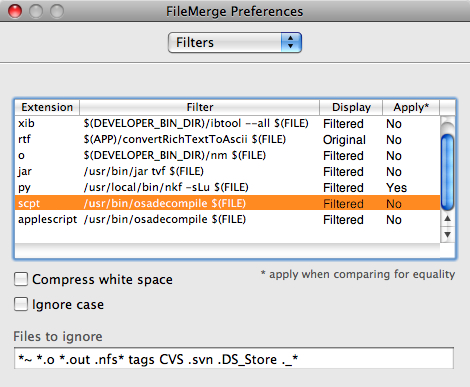
とするだけ。スクリプトファイルを引数にとり、オプションなどは一切なし。これを FileMerge の「環境設定(英語しかリソースがないので Preferences... となっている)」にある「Filters」で以下のように設定。

/usr/bin/osadecompile $(FILE)

「Extension」は「scpt」、または「applescript」、「Display」は「Filtered」、「Apply」は「No」で。

FileMearge 環境設定

これでスクリプトファイルの比較ができるや...と思いきや、このままでは日本語の混じったスクリプトファイルだと表示されなかったりする...(まぁ、プログラムファイルに日本語などを混ぜてはいけないってことなんだろうけど、日本語もごちゃ混ぜで記述できる気楽さが AppleScript のいいところなんだよな)。また、スクリプトアプリケーションやスクリプトバンドルなどもそのままではうまく表示できない。フィルタースクリプトを書いて処理すればいいんだろうけど...挫折してしまいました。

誰か、書いてくれないかな。