ライブラリで 利用する Objective-C

AppleScript から Objective-C を利用できるなったのは、Mac OS X 10.6 の頃のことでした。

あまり、利用されていないような気もします。まぁ、敷居が高いですからね...。

今回はそんな AppleScript/Objective-C(略して ASOC)を AppleScript 2.3 で追加されたスクリプトライブラリで利用するお話。

といっても、そんな難しい話ではなく『AppleScript の新機能 (1) - ライブラリ - ASH Planning』と同じように、AppleScript のライブラリとなんら変わるものではありません。

それでは、Finder のファイルのアイコンを変更するライブラリを作ってみます。AppleScript から Finder 項目のアイコンの変更って以前は可能でしたが、今はできません。一方、NSWorkspace にはアイコンを設定するためのメソッドがあります。それを利用します。

以下の内容で新規スクリプトを作成します。

Script Editor で開く

property NSWorkspace : class "NSWorkspace"
property NSImage : class "NSImage"
property NSString : class "NSString"
property NSURL : class "NSURL"

on setIcon(targetFile, imageFile)
    (* 
        targetFile のアイコンを imageFile に設定します
    *)

    -- AppleScript の文字列を Objective-C の NSString に変換
    set targetFile to NSString's stringWithString:targetFile
    set imageFile to NSString's stringWithString:imageFile

    -- 画像のファイルパスからファイルを読み込み NSImage を作成
    set thisImage to NSImage's alloc()'s initWithContentsOfFile:imageFile

    -- NSWorkspace の setIcon:forFile:options: を使ってアイコンを設定
    -- 返り値は真偽値
    return NSWorkspace's sharedWorkspace()'s setIcon:thisImage forFile:targetFile options:(current application's NSExclude10_4ElementsIconCreationOption)
end setIcon

これを Script Libraries に保存するのですが、Objective-C を利用するライブラリにするにはいくつか注意点があります。

  1. スクリプトバンドル(拡張子 scptd)で保存する
  2. 保存したバンドルファイルの Info.plist を変更する

とりあえず、このスクリプトを Finder Utilities.scptd という名前で Script Libraries に保存します。

バンドル形式で保存すると、AppleScript Editor でバンドルの内容を編集するためのドロワーを開くことができるようになります。
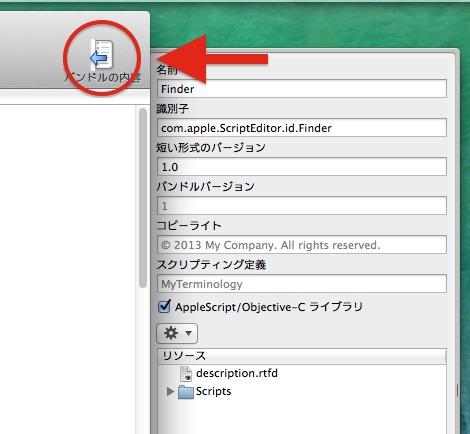
バンドルの内容を表示

このドロワーに『AppleScript/Objective-C ライブラリ』というチェックボックスがあります。ここをチェックします。
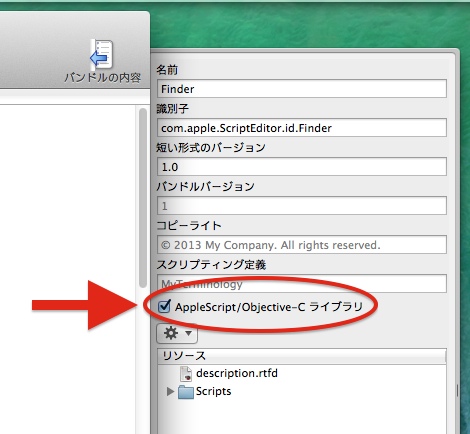
Objective-C ライブラリのチェック

チェックがないと Objective-C の利用はできません。また、ここにチェックを入れることでバンドル内の Info.plist に『OSAAppleScriptObjCEnabled』という項目が追加されます。バンドル内の Info.plist を開いて手動で追加することもできますが、AppleScript Editor を利用するのが簡単です。

ちなみに、通常のスクリプトでも Objective-C が利用できるのか?と思いきや、それは無理なようです。

新しいスクリプトを作成し、以下のようにして呼び出します。

Script Editor で開く

on run
    set targetFile to POSIX path of (choose file)
    set imageFile to "/Library/User Pictures/Sports/Basketball.tif"

    tell script "Finder Utilities"
        setIcon(targetFile, imageFile)
    end tell
end run

選択した Finder 項目のアイコンを /Library/User Pictures/Sports/Basketball.tif に変更します。

いくつか注意点はありますが、AppleScript ライブラリを利用するのとさほど変わらない手間で Objective-C が利用できました。実際、Cocoa フレームワークのメソッドを使っている以外は通常のハンドラです。

Objective-C のメソッドは、コロン(:)に続いて引数がきます。AppleScript では Objective-C のメソッドを呼び出すときにアンダースコア(_)で置き換えていたのですが、AppleScript 2.3 ではコロンの利用が可能なっています。というか、コンパイルすると勝手に置き換わってしまいます。違和感ありまくり。

クラスの参照ですが、

property NSString : class "NSString"

このような書き方と、

property NSString : a reference to current application's NSString

このような書き方があります。前者は古くからの書き方ですね(タイプが少なくてすむのでよく使ってます)。どちらも同じように動きます。違いがよく分かっていないという方が正しいけど。ですが、current application が必要なときが必ずあります。それは、クラスで定義されている enum や const を利用するときです。

先ほどのライブラリでいうなら、NSExclude10_4ElementsIconCreationOption を利用している部分です。

return NSWorkspace's sharedWorkspace()'s setIcon:thisImage forFile:targetFile options:(current application's NSExclude10_4ElementsIconCreationOption)

こういうとき current application がないとエラーになります。Objective-C の利用方法や Cocoa フレームワークの紹介なんかはいろんな情報源があるのでそちらを参照してみてください(冷たいねぇ)。

で、いろいろとある Cocoa フレームワークの AppleScript での利用方法ですが...これは次回にでも。

AppleScript の新機能 (3) - ライブラリの補足

ライブラリ機能の続きになります。

まだ続くんかいってところですが、色々と変わっているんですね。久しぶりに触ってみると。

AppleScript/Objective-C(以降は ASOC と略します)は、以前(いつ頃からだっけ?)から利用できたのですが、それが AppleScript のライブラリ機能と組み合わさるとどうなるのか?

古くは ScriptingBridge。そして、Xcode での ASOC アプリケーションのサポート。最近では AppleScript Editor で ASOC アプレットサポート...。こうやって段階を踏んできたのですが、やっと、通常のスクリプトで ASOC が利用できる環境が整ってきました。

と、Objective-C 利用の話に進もうと思ったのですが、前回の補足を少し。

まず、前提として OS X Mavericks の AppleScript 2.3 で追加された機能...。

  • スクリプトライブラリ
  • use 構文
  • AppleScript Editor でのコード署名対応
  • 通知センターのサポート

等々...。まぁ、他にもありますが。以上のような機能は全て OS X Maverics 以降でしか利用できません。特にスクリプトライブラリと use 構文には後方互換がありません。これらを積極的に利用するなら、OS X Mavericks 以前の環境は切り捨て...になります。

ただ、スクリプト内で実行環境を調べることはできるので Mavericks 以前と以後でのスクリプトの挙動を制御することは可能です。

あと、use 構文....この構文については別で取り上げようと思っていたので詳しい説明は省いていました。ただ、一点だけ。

use FinderUtilities : script "Finder Utilities"

この構文ですが、

property FinderUtilities : script "Finder Utilities"

と意味的には同じです。変数へのアサインです。これ以上でも以下でもない。唯一の違いは use を利用すると『必ず、最新のライブラリを読み込む』ということです。

いろいろ試しているのですが use 構文は単純に tell 構文を置き換えるもの...でもなく、癖があって使いにくい。長くなるのでまた今度、ということで。

あと、ライブラリを色々なところから利用するときのこと。

handlerA()
handlerB()

displayCounter() of script "Counter"

on handlerA()
    countup() of script "Counter"
end handlerA

on handlerB()
    countup() of script "Counter"
end handlerB

このようなスクリプトなんですが、このときライブラリは何回呼び出されるのか?ライブラリはスクリプト内に取り込まれた後、それが使い回されます。シングルトン?とでもいえばいいのか...(複製はできるんだけど)。そして、ライフサイクルはスクリプトが始まってから終わるまで、です。

最後に。Script factory さんからの質問。

と、いうことなんですが...。

property にスクリプトオブジェクトを読み込むと、コンパイル時の状態が保たれます。例えば、まだスクリプトはデバッグ中だよ、というフラグを作ります。

property DEBUG : true

これを他のスクリプトの property にスクリプトオブジェクトとして読み込みます。当然、読み込んだ方のスクリプトではこの状態を保ったままにします。

property DEBUG : false

デバッグが終わったのでこのように変更します。しかし、読み込んでいる方のスクリプトでは以前の状態(デバッグ中!)のままです。変更は反映されません。どうしてかというと、 property がそういう性質のものだからです(手抜きだなぁ)。property はコンパイル時に評価され、コンパイル時のスクリプトオブジェクトをそのまま保持しているんですね。変更するには再度、コンパイルする必要があります。

つまり、おおもとの(状況によっては全ての関連する)ファイルを開いて編集して再コンパイルして再保存...面倒ですね。自分で使っているぶんにはまだしも、配布しているスクリプト、ましてや実行専用のものだと利用者に労力を割いてもらわなければなりません。こういう事態は避けたいものです。

では、実行時に最新の状態を property に読み込むようにするにはどうすればいいのか?ということなんですが、個人的には一番簡単な方法を使っています。つまり、実行時に読み込む。

property theObject : missing value

set theObject of me to load script file "/script/file/path"

もしくは、

set theObject of me to my makeObject(load script file "/script/file/path")

on makeObject(theObject)
    script
        property scriptObject : theObject
    end script
end makeObject

このような感じ。

おそらく、Script factory さんの求めている答えと激しく異なっていると思いますが...。

理由としては、『確実』だからでしょうか。問題としては依存している全てのファイルが必要、管理が面倒、融通が利かない...等々、問題点の方が多いのですが。

こういう問題って、みんなどうしているんでしょう?

激しく謎です。

以上。補足でした。って、結構な長さになってしまった...。Objective-C 利用の話に進もうと思っていたのに。

AppleScript の新機能 (2) - ライブラリの続き

簡単に AppleScript のライブラリ機能について書きましたが、今度はちょっとディープな話。

スクリプト内でライブラリスクリプトを手軽に利用できるのはいいのだけど、利用しているライブラリスクリプトはスクリプトオブジェクトとは違うのかといったことを。

まず、ライブラリスクリプトはどこからでも参照できます。そして、読み込んだライブラリスクリプトはスクリプト内でユニークな存在になります。つまり、そのスクリプト上では一つしか存在しないことになります。load script 命令との最大の違いはここではないかな、と。

試してみましょう。

まず、以下のようなスクリプトを Script Libraries に保存します。

Script Editor で開く

property counter : 0

on displayCounter()
    tell me
        activate
        display dialog (counter as text)
    end tell
end displayCounter

on countUp()
    set counter of me to counter + 1
end countUp

property の値を変更するだけのものです。これを Script Libraries に Counter.scpt という名前で保存します。

次に以下のスクリプトを作成。

Script Editor で開く

on run
    -- 別のハンドラから呼び出してみる
    anotherCounter()

    -- 通常の呼び出し
    script "Counter"'s countUp()
    script "Counter"'s displayCounter()

    script "Counter"'s countUp()
    script "Counter"'s countUp()
    script "Counter"'s countUp()
    script "Counter"'s countUp()
    script "Counter"'s displayCounter()

    -- set 命令で変数に代入
    set newCounter to script "Counter"

    newCounter's countUp()
    newCounter's displayCounter()
end run

on anotherCounter()
    script "Counter"'s countUp()
    script "Counter"'s displayCounter()

    script "Counter"'s countUp()
    script "Counter"'s countUp()
    script "Counter"'s countUp()
    script "Counter"'s countUp()
    script "Counter"'s displayCounter()
end anotherCounter

実行してみると分かるのですが、どの場所から呼び出してもライブラリ側の property の値は増えていきます。set 命令で変数に割り当てても同じライブラリスクリプトを参照しています。この辺りは通常のスクリプトオブジェクトと同じですね。

何回か繰り返し実行すると分かるのですが、property の値は常に初期値から始まります。保存はされません。

では、スクリプトオブジェクトのようにライブラリスクリプトを複数作成することはできるのでしょうか?

結論から言うと、copy 命令で複製できます。

Script Editor で開く

on run
    -- copy 命令で複製
    copy script "Counter" to copiedCounter
    copiedCounter's countUp()
    -- ここでの値は 1
    copiedCounter's displayCounter()

    script "Counter"'s countUp()
    script "Counter"'s countUp()
    script "Counter"'s countUp()
    script "Counter"'s countUp()
    -- ここでの値は 4
    script "Counter"'s displayCounter()

    -- 両方は同じものか?
    script "Counter" is copiedCounter
    --> false

    -- 再び複製
    copy script "Counter" to newObject
    newObject's countUp()
    -- ここでの値は 5
    newObject's displayCounter()

    -- 複製されたものは同じものか?
    copiedCounter is newObject
    -- false
end run

このように複製はできますが、その時点での状態(property)も複製します。初期値を持ったままの新しいオブジェクトが必要なら、初期化ハンドラなどを含めておくか、 load script 命令で読み込むなりする必要があります。

また、ライブラリスクリプト内のスクリプトから他のライブラリスクリプトを利用することもできますし、ライブラリスクリプトの proerty、parent 指定も可能です。

前回使った Finder Utilities.scpt を使って試してみます。Finder Utilities.scpt には finderSelection() というハンドラがあります。

Script Editor で開く

on finderSelection()
    tell application id "com.apple.finder" to selection
end finderSelection

これですね。これを利用する側でちょっと拡張してみます。

Script Editor で開く

property parent : script "Finder Utilities"

finderSelection()

on finderSelection()
    tell application id "com.apple.finder"
        set selectedItems to continue finderSelection()
        if selectedItems is {} then return {}
        return sort selectedItems by creation date
    end tell
end finderSelection

このように作成日でソートした結果を返します。continue 文も利用できます。

property や parent としてライブラリスクリプトを利用するときの注意どころとしては、ライブラリスクリプトは構文確認(コンパイル)時のみ読み込まれるということ。property の挙動としては当然なのですが、久しぶりの AppleScript なんですっかり忘れてました。

Script Editor で開く

finderSelection()

on finderSelection()
    tell application id "com.apple.finder"
        set selectedItems to script "Finder Utilities"'s finderSelection()
        if selectedItems is {} then return {}
        return sort selectedItems by creation date
    end tell
end finderSelection

このように利用するのであれば、常に最新のライブラリスクリプトが利用されます。

ここまでできれば後は工夫次第で、スクリプト同士が依存したライブラリスクリプトの作成も可能ではないのかと...(複雑なケースを検証した訳ではないので突っ込まれると困りますが)。

最後に関係ないのだけど、ちょっとハマったので。次のスクリプトを実行してみると...。

Script Editor で開く

tell application id "com.apple.Finder"
    set theList to selection
end tell

tell application "Finder"
    sort theList by name
end tell

はい。エラーになります。では、次のスクリプト。

Script Editor で開く

tell application id "com.apple.finder"
    set theList to selection
end tell

tell application "Finder"
    sort theList by name
end tell

はい。動きます。

何が違うのかというと、application id の文字列。具体的には com.apple.Finder か com.apple.finder かの違い。

Finder か finder か。

正しいのは com.apple.finder。なんだけど、どれも同じように動くのです。しかし、

application id "com.apple.Finder" is application id "com.apple.finder"
--> false

この結果が false のように両者は異なったものなのです。

application "Finder" is application id "com.apple.finder"
--> true

こっちが正しい。id でアプリケーションを指定する場合、正確な id を利用しましょう。

では、再見!!

AppleScript の新機能 (1) - ライブラリ

2013 年で 20 周年なんだってね。AppleScript。気づかなかったよ。だからというわけなのかどうか知らないけれど、OS X Mavericks 上の AppleScript 2.3 においていくつかの重要な機能が追加されました。

そのうちのひとつが、AppleScript Library。今までなかったのが不思議なぐらいなんだけど、やっとライブラリを簡単に取り扱える機能が言語ベースでサポートされました。

とは言うものの、あくまで機能としてサポートされただけで、最初から使えるスクリプトが付属しているわけではなく、ライブラリは自分で拡充していくしかないのですが。

なかなか手厳しい意見があったりもしますが、ともかく既存のスクリプトをライブラリとして手軽に活用できる環境が整いました。これをどう使うかはあなた次第。使い方は簡単。まずは使ってみましょう。

すでに AppleScript を活用していて自身でスクリプトを使い回している人なら、ユーザーの Library フォルダ以下に Script Libraries というフォルダを作成しましょう(~/Library/Script Libraries)。

このフォルダの中に既存のスクリプトを移動、または保存します。スクリプトはなんでもいいです。拡張子が scpt でありさえすれば(バンドル形式のスクリプトについては別途取り扱います)。

ここでは、次のようなスクリプトを保存してみましょう。

Script Editor で開く

on finderSelection()
    tell application id "com.apple.Finder"
        return selection
    end tell
end finderSelection

on filterByExtension(targetWindow, ext)
    tell application id "com.apple.Finder"
        return files of targetWindow whose name extension is ext
    end tell
end filterByExtension

on selectItems(theseItems)
    tell application id "com.apple.Finder"
        ignoring application responses
            set selection to {}
            set selection to theseItems
        end ignoring
    end tell
end selectItems

on remove_filetype(the_file)
    tell application "Finder"
        set creator type of the_file to missing value
        set file type of the_file to missing value
    end tell
end remove_filetype

なんということもない Finder でよく使うハンドラの集まりです。このスクリプトを Finder Utilities という名前で保存します。

ライブラリスクリプトを Script Libraries にスクリプト形式で保存

新しいスクリプトを作成します。

Script Editor で開く

tell application id "com.apple.Finder"
    set theseItems to script "Finder Utilities"'s finderSelection()
    if theseItems is {} then return

    set fileList to {}
    repeat with thisItem in theseItems
        set theWindow to container of thisItem
        set ext to name extension of thisItem

        if ext is not "" then
            set fileList to fileList & script "Finder Utilities"'s filterByExtension(theWindow, ext)
        end if
    end repeat

    script "Finder Utilities"'s selectItems(fileList)
end tell

Finder で選択しているファイルと同じ拡張子を持つファイルを全て選択するスクリプトです。Finder での並び順がバラバラだったりするのでちょっと重宝します。

実行するとなんの問題もなく動きます。当然ですね。では、解説。

先ほど Script Libraries に保存したライブラリスクリプトを他のスクリプトで利用するには次の書式を使います。

script "スクリプトファイル名"

スクリプトファイル名には拡張子は必要ありません。

script "Finder Utilities"

このような感じですね。ハンドラの呼び出しは通常の参照と同じです。finderSelection() というハンドラを呼び出したいなら、

finderSelection() of script "Finder Utilities"

または、

script "Finder Utilities"'s finderSelection()

となります。

AppleScript に慣れている人なら戸惑うこともないでしょう。もちろん、引数も通常どおり渡せます。

あっけないぐらい簡単にライブラリを利用できます。この書き方は冗長なので次のようにすることも可能です。

property FinderUtilities : script "Finder Utilities"

FinderUtilities's finderSelection()

これも新しく追加された use を使って次のように書くこともできます。

use FinderUtilities : script "Finder Utilities"

FinderUtilities's finderSelection()

これらの書式すら冗長なら parent に指定することもできます(なんでもかんでも parent に指定するのは、どうかと思いますが)。

property parent : script "Finder Utilities"

finderSelection()

It's Amazing!! Let's biginning the AppleScript!!!

ってそれほどでもないか。

まぁ、既存のスクリプトを手軽に扱えるようになったのはいいことでしょう。いろんな意見もあることでしょうが、こういうものはないよりはましです。気になること(例えば、ライブラリスクリプトからライブラリを利用できるのか?等)もあるでしょうが、そういったことはまた次回にでも。Coming Soon!!

Mavericks に 古い iWork をインストールした

OS X Marvericks にアップデートし、新しい Keynote と Numbers と Pages をインストールしたものの...。AppleScript が全くサポートされていないなんて。商売上がったりだよ...(嘘だけど)。

そんなわけで、iWork '09 をインストールしたよ、ってお話。

とりあえず、古い iWork '09 がないことには話にならない。

古いインストール DVD を探し出し、おもむろにインストール。特にエラーもなくインストール完了。Apple から最新のアップデータを適用する。ここまでは何の問題もなく完了。まだ Amazon なんかでインストール DVD が売っていたりするので必要なら今のうちに買っておくのがいいかも(ただ、Amazon のレビューをみている限りでは躊躇してしまうのだけど)。

これで最新と一つ前の iWork ソフトウェアが共存することになる。

が、問題はこれから。

最新の Keynote、Pages、Numbers は AppleScript サポートがほとんど全滅なんだけど、それ以外は古いものと同じなんですね。つまり、バンドル ID やクリエータータイプ等々。たいていの人にはほとんど関係ないようなことなんだけど、これだと困るのです。AppleScript で操作するときに。

例えば、AppleScript で次のようなことをすると、最新か古いのかどちらが反応するかは運次第。

Script Editor で開く

tell application "Keynote"
    activate
end tell

どうしたものか。こうしたときに使える AppleScript のバッドノウハウ(?)がどこかにあったような...。

試行錯誤を繰り返した末たどりついたのは、アプリケーションのパスを使う方法。

Script Editor で開く

tell application "System Events"
    set appList to application processes whose visible is true

    -- プロセスの中から Keynote '09 を探す
    set targetApp to missing value
    repeat with thisApp in appList
        set appFile to application file of thisApp
        if (short version of appFile is "5.3") and (creator type of appFile is "keyn") then
            set targetApp to appFile as text
            exit repeat
        end if
    end repeat
end tell

tell application targetApp
    name -- "Keynote"
    version --> "5.3"
end tell

うん。動く。上記は System Events を使って目的のアプリケーションのファイルパスを取得していますが、直接パスを記述するのもあり。

-- アプリケーションのパスを文字列で記述する
tell application "path:to:application"
    (* code is here *)
end tell

これで今まで使っていた AppleScript を使うことができる。まぁ、本当のところは最新のアプリケーションが AppleScript に対応してくれるのが一番なんだけどね。

おっぱいスクリプト with AppleScript

ゆけ。リビドーの赴くままに。

...もう旬が過ぎた気もするし、三連休が終わって明日から仕事なんだろうけど AppleScript によるおっぱいスクリプトの実装を。

他の言語ではどのように実装されているか、といったことを比べながら読むと AppleScript の長所や短所がよく分かる気がします。

最大の違いはどの言語も最初からライブラリが豊富だったり、追加できたり...と。AppleScript は他の言語がライブラリを利用して実装している部分をすべて自分で作らなければだめなのです。ゆえに、コードが長い...。

なんの奇もてらっていないので、AppleScript をこれから覚えるんだ!といった中学、高校生以外にはなんの面白みもないものになっていますのであしからず。

Yahoo の検索 API を使っているので、Yahoo!デベロッパーネットワーク で登録して、アプリケーション ID を取得しておいてください。

Script Editor で開く

property APP_ID : "ここに Yahoo のアプリケーション ID を入れてちょ"
property API_URL : "http://search.yahooapis.jp/ImageSearchService/V2/imageSearch"
property SEARCH_WORD : "おっぱい"

on run
    main()
end run

on main()
    set my SEARCH_WORD to text returned of (display dialog "Enter search word:" default answer SEARCH_WORD with icon 1)
    set dataFolder to choose folder

    set pageCount to 1
    set downloadCount to 1

    repeat until pageCount is greater than 20
        set queryList to {{"appid", APP_ID}, {"query", SEARCH_WORD}, {"results", "20"}, {"adult_ok", "1"}, {"format", "jpeg"}, {"site", "tumblr.com"}, {"type", "any"}, {"start", ((pageCount - 1) * 20 + 1) as text}}

        set theURL to my makeQuery(queryList)
        set xml to my urlopen(API_URL & "?" & theURL)
        set xmlDocument to my openXML(xml)
        set root to my getFirstNode(xmlDocument)

        if my getNodeName(root) is "ResultSet" then
            repeat with thisItem in my getElementsByTagName("Result", root)
                set imageURL to my getFirstNodeTextByTagName("Url", thisItem)
                my downloadFile(imageURL, dataFolder)
                set downloadCount to downloadCount + 1
            end repeat
        end if
        set pageCount to pageCount + 1
    end repeat
end main

on encodeURL(theText)
    try
        return do shell script "python -c \"import sys,urllib; print urllib.quote(sys.argv[1])\" " & quoted form of theText
    on error mes number num
        return {num, mes}
    end try
    return theText
end encodeURL

on urlopen(thisURL)
    try
        set theResult to do shell script "curl " & quoted form of thisURL
    on error msg number num
        set theResult to {msg, num}
    end try

    return theResult
end urlopen

on downloadFile(fileURL, downloadFolder)
    do shell script "cd " & quoted form of (POSIX path of downloadFolder) & ";curl -O -L " & quoted form of fileURL
end downloadFile

on makeQuery(queryList)
    set theList to {}
    repeat with thisItem in queryList
        set thisItem to {item 1 of thisItem, my encodeURL(item 2 of thisItem)}
        set end of theList to my join(thisItem, "=")
    end repeat

    return my join(theList, "&")
end makeQuery

on join(theList, delimiter)
    tell (a reference to text item delimiters)
        set {tid, contents} to {contents, delimiter}
        set {theText, contents} to {theList as text, tid}
    end tell

    return theText
end join

on openXML(theFile)
    tell application "System Events"
        delete every XML data
        set xmlDocument to ""
        try
            set xmlDocument to contents of XML file theFile
        on error msg number num
            if num is -1728 then
                if (class of theFile) is text then
                    set xmlDocument to make new XML data with properties {text:theFile}
                else
                    return {num, msg}
                end if
            else
                return {num, msg}
            end if
        end try
    end tell

    return xmlDocument
end openXML

on getFirstNode(xmlDocument)
    tell application "System Events"
        return first XML element of xmlDocument
    end tell
end getFirstNode

on getNodeName(node)
    tell application "System Events"
        return name of node
    end tell
end getNodeName

on getElementsByTagName(tagName, node)
    tell application "System Events"
        if exists (XML elements of node whose name of it is tagName) then
            return XML elements of node whose name of it is tagName
        else
            return missing value
        end if
    end tell
end getElementsByTagName

on getFirstNodeTextByTagName(tagName, node)
    tell application "System Events"
        if exists (XML elements of node whose name of it is tagName) then
            set firstNode to my getFirstNodeByTagName(tagName, node)
            set nodeText to value of firstNode
            try
                nodeText
            on error
                return ""
            end try
        else
            return ""
        end if
    end tell
end getFirstNodeTextByTagName

on getFirstNodeByTagName(tagName, node)
    tell application "System Events"
        if exists (XML elements of node whose name of it is tagName) then
            return (first item of (XML elements of node whose name of it is tagName))
        else
            return missing value
        end if
    end tell
end getFirstNodeByTagName

140 行ほどですか。長いですね。長いです。このハンドラでまとめている部分のほとんどが、他の言語ではライブラリとして用意されていたりします。ファイルのダウンロードすら現在では OSAX がなくなり、AppleScript では処理できないですからね。

健全な青少年も利用できるように検索語句は利用者が入力できるようにしています。

改良できる部分は多々あると思います。現状、リクエストに対しエラーが返ってきたら無視しているので、結果が返ってくるまでリクエストを繰り返してもいいと思います。また、画像の大きさを調べて小さいものはダウンロードしないといったことをしてもいいかも。

では、また。

AppleScript でクロージャ

クロージャがなにかってことはイマイチよく分かっていないのだけど。

Python クックブック 第2版を読んでいて、載っていたスクリプトを AppleScript で書き直したら、動いたって話なんだけど。JavaScript ほど多彩なことができるわけではないのだけど。

まぁ、どこでどのように使うのかというギモンは残るんだけどね。

AppleScript の場合、関数(ハンドラ)の中に関数(ハンドラ)は作れない。これはご存知だと思います。しかし、スクリプトオブジェクトなら作ることができます。

Script Editor で開く

on makeObject(i)
    script MyObject
        property counter : i

        on countUp()
            set counter to counter + 1
        end countUp

        on getCounter()
            my counter
        end getCounter

        on run
            countUp()
        end run
    end script
end makeObject

set theObject to makeObject(0)

tell theObject
    run
    display dialog getCounter()
    run
    display dialog getCounter()
end tell

単純な例ですが、実行するたびにカウントを行うスクリプトオブジェクトです。makeObject ハンドラ実行時に引数を渡し、それが MyObject の属性に初期値として設定されています。これはこれで特に問題はないのですが、MyObject の属性 counter は書き換え可能です。

tell theObject
    run
    display dialog getCounter() -- 1
    run
    display dialog getCounter() -- 2
    set counter of it to 100 -- 値を書き換えてみる
    run
    display dialog getCounter() -- 101
end tell

スクリプトオブジェクトの属性は読み書き可能。これは、AppleScript では当たり前のことですね。では、次のように書き換えてみましょう。

Script Editor で開く

on makeObject()
    set counter to 0
    script MyObject
        on countUp()
            set counter to counter + 1
        end countUp

        on getCounter()
            return counter
        end getCounter

        on run
            countUp()
        end run
    end script
end makeObject

set theObject to makeObject()

tell theObject
    run
    display dialog getCounter() -- 1
    run
    display dialog getCounter() -- 2
    try
        set counter of it to 100 -- 値を書き換えてみる
    on error msg number num
        error number num
    end try
    run
    display dialog getCounter() -- 3
end tell

makeObject ハンドラ実行時の引数をなくし、MyObject の属性 counter を makeObject ハンドラ内のローカル変数にしてみました。ハンドラ実行時のローカル変数がハンドラ実行後も保持され、スクリプトオブジェクト内から参照可能です。が、スクリプトオブジェクトの外から counter の値を変更することも参照することもできません。

もう少し分かりやすく書くと以下のようになります。

Script Editor で開く

on DataObject(theKey, value)
    script
        on getKey()
            return theKey
        end getKey

        on getValue()
            return value
        end getValue
    end script
end DataObject

set theData to DataObject("id", "someone")
theData's getKey() -- "id"
theData's getValue() -- "someone"

変数 value や theKey にアクセスするにはハンドラを利用する以外ありません。もちろん、グローバル変数を利用すると話は別ですが(または、スクリプトオブジェクト内に setter を用意するとか)。

と、にハンドラ内のローカル変数が保持されることは分かったのですが、これがクロージャなのかといわれるとよくわからなかったりする。以下のようにしておけば、スクリプトオブジェクトの初期化処理を複数回呼び出すことを防いだりできるかな?

Script Editor で開く

on makeObject()
    set instance to missing value
    script MyObject
        on init()
            if instance is missing value then
                (* ここに初期化処理 *)
                -- ハンドラのローカル変数に自身を割り当てる
                set instance to me
            else
                -- 初期化されてるよ
                display dialog "Initialize OK"
            end if
        end init

        on greeting()
            display dialog "Hello"
        end greeting
    end script

    init() of MyObject
    return instance
end makeObject

set x to makeObject()
init() of x
greeting() of x

init ハンドラ自体を呼び出せないようにしたいけど、そこまで求めるのは無理があったりなかったり。